Beginner’s Guide to WordPress
Beginner’s Guide to WordPress: Build Your Website Easily
WordPress is one of the most popular platforms for creating websites. Whether you want a personal blog, business website, or online store, WordPress makes it simple even for beginners. In this guide, we will walk you through the basics of WordPress and how to get started.
What is WordPress?
WordPress is a free and open-source content management system (CMS). It allows you to create websites without writing code. WordPress is highly flexible and can be used for blogs, business sites, portfolios, and eCommerce stores.
Why WordPress is popular:
- Easy to use, even for beginners
- Thousands of free themes and plugins
- SEO-friendly and mobile responsive
- Large community support
Step 1: Choosing a Domain and Hosting
Before you start, you need:
Domain Name Tips
your website’s address (example: www.yourwebsite.com )
Web hosting
a server where your website will live
Choose a Domain
Choose Hostinger for fast, secure WordPress hosting. Get easy setup, beginner-friendly tools, excellent uptime, and one free domain for 1 year. Affordable plans help launch and grow your website smoothly.
Choose Web Hosting
Get Hostinger web hosting with 1-year free domain, free SSL, and fast loading speed. Beginner-friendly tools ensure easy setup, security, excellent uptime, and smooth website performance for your online success.
Free WP & Unlimited Themes
Start with free WordPress and access unlimited free themes. Customize your website easily, choose responsive designs, and create a professional-looking site without coding. Perfect for beginners and growing websites.
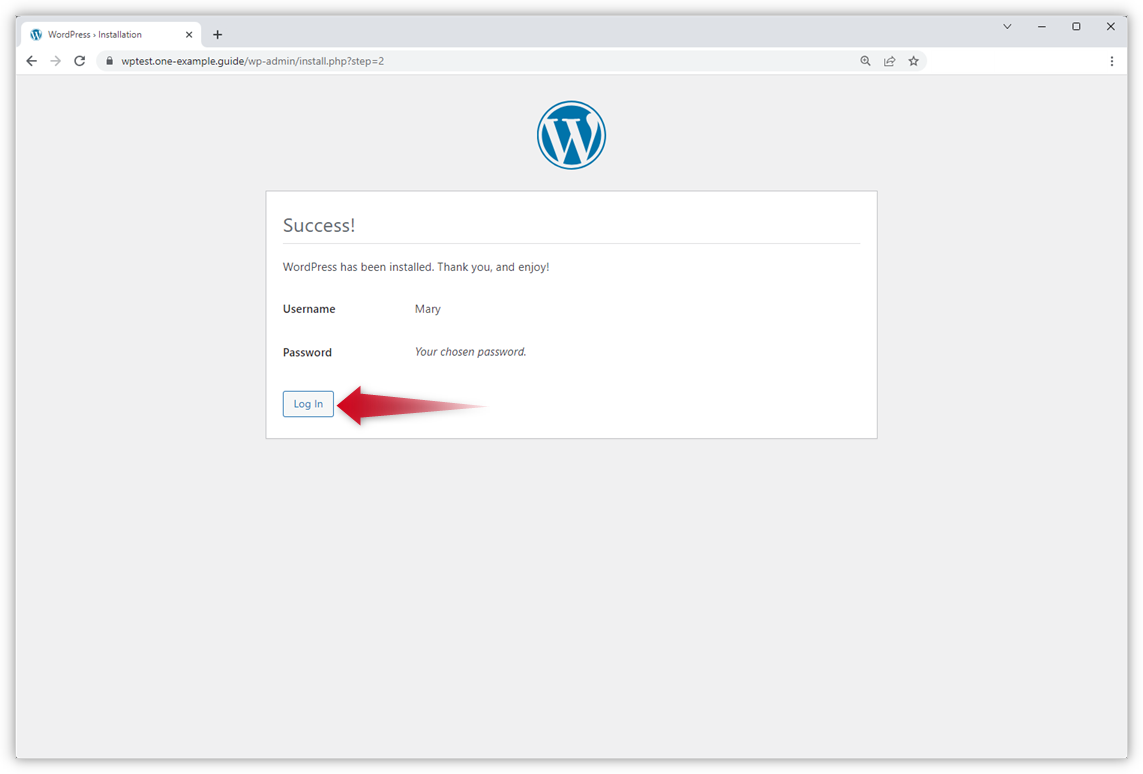
Step 2: Installing WordPress
Most hosting providers offer one-click WordPress installation:
- Log in to your hosting account
- Find the “WordPress” installer
- Click “Install” and follow the steps
Once installed, you can log in at www.yourwebsite.com/wp-admin to access your WordPress dashboard.
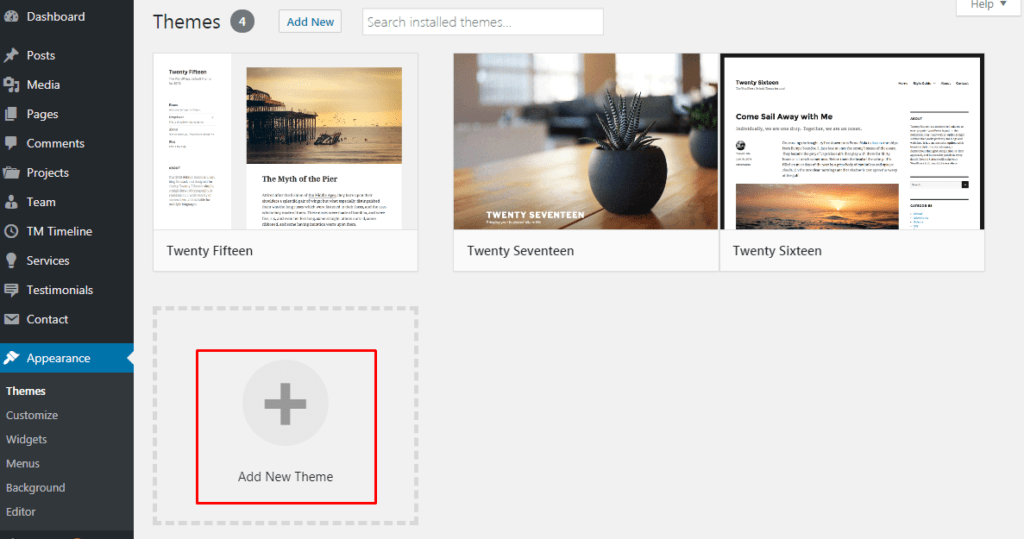
Step 3: Choosing a Theme
A WordPress theme controls how your website looks.
Why WordPress is popular:
- Free themes: Available in the WordPress theme directory
- Paid themes: Offer extra customization and features
Tip: Choose a responsive theme that works well on mobile devices. Popular beginner-friendly themes: Astra, OceanWP, GeneratePress.
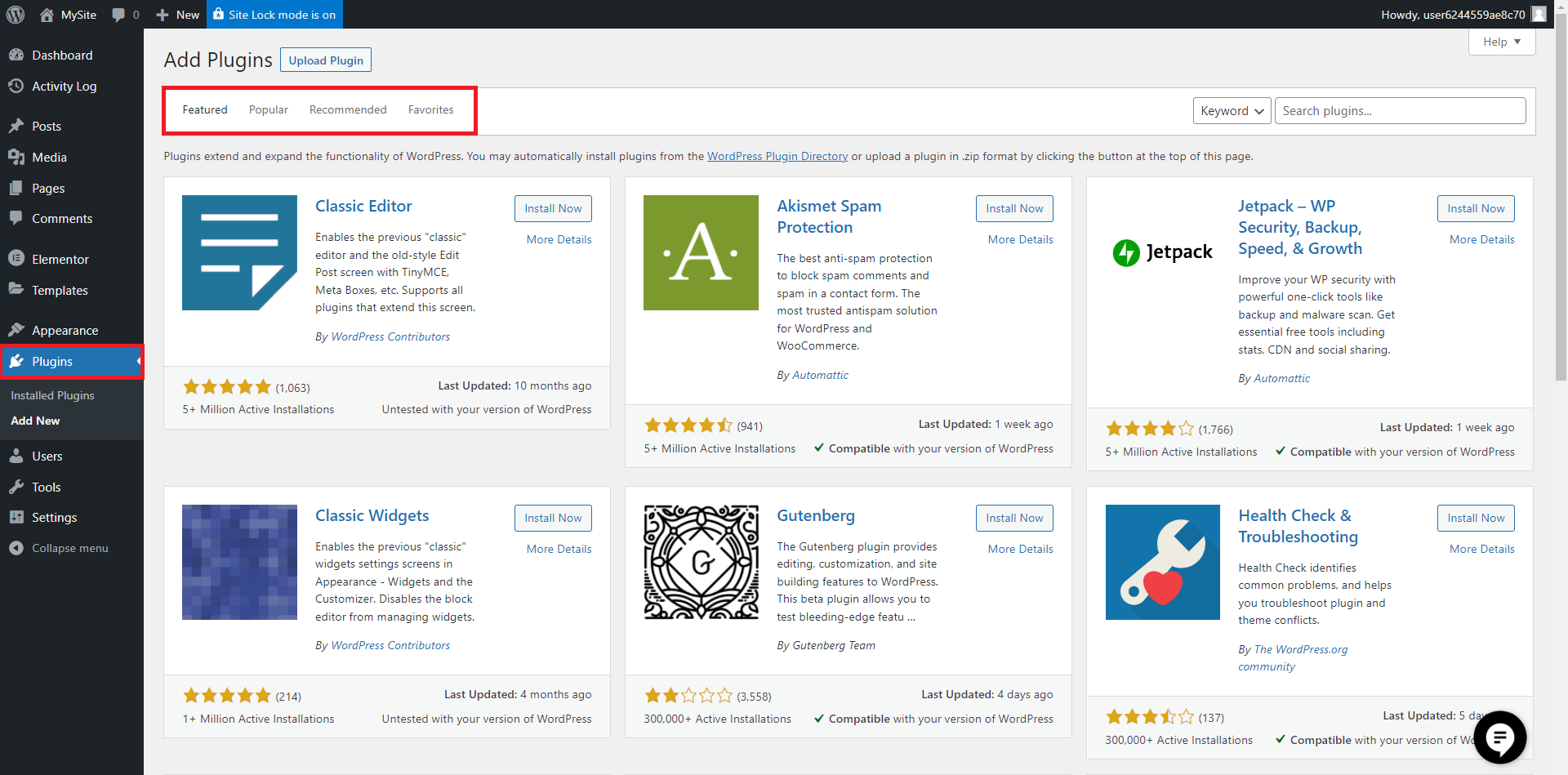
Step 4: Installing Plugins
Plugins add extra functionality to your website. Some essential plugins for beginners:
- Elementor – Drag-and-drop page builder, no coding needed.
- Elementor Pro – Advanced widgets, theme builder, professional tools.
WooCommerce – Build an online store with products and payments.
- Contact Form 7 – Add customizable contact forms.
Tip: Install only necessary plugins to keep your site fast and secure.
Step 5: Creating Pages and Posts
WordPress has two main content types:
Pages – Static content (About, Contact, Services)
- Posts – Blog articles that are regularly updated
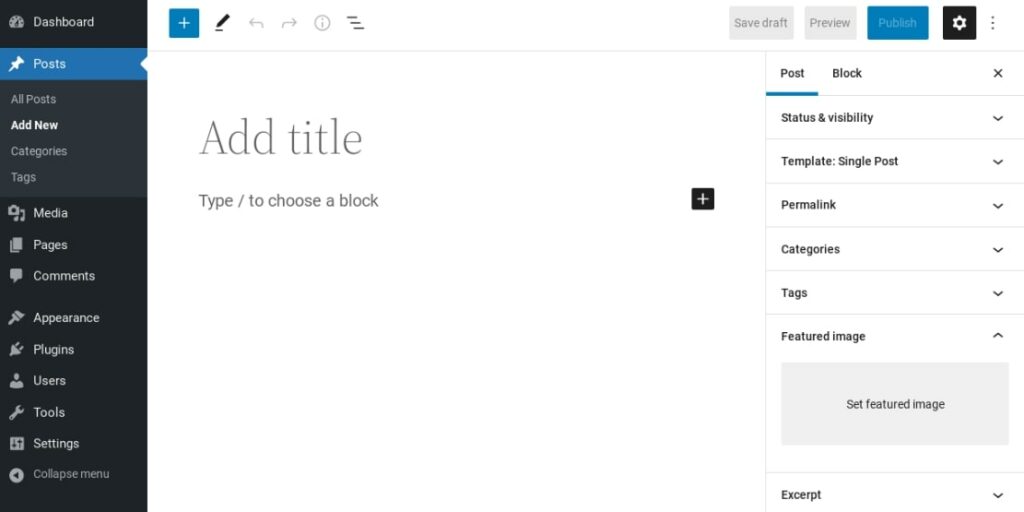
To create a page or post:
- Go to your dashboard → Pages/Posts → Add New
- Add title, content, images, and publish
Tip: Install only necessary plugins to keep your site fast and secure.
Step 6: SEO Basics
To make your WordPress website search engine friendly:
- Use keywords in titles, headings, and content
- Add meta description for each page/post
- Optimize images with alt text
- Use an SEO plugin like Yoast SEO
Step 7: Launching Your Website
Before launching:
- Check all pages and links
- Test your website on mobile devices
- Set up a backup system
- Share your website on social media
Congratulations! Your WordPress website is live. 🎉
Final Tips for Beginners
- Keep your WordPress, themes, and plugins updated
- Use strong passwords to secure your site
- Start with simple designs and gradually customize
- Learn from the WordPress community and tutorials
Meta Description (SEO-friendly):
“Beginner’s Guide to WordPress: Learn how to build a website easily with step-by-step instructions, free themes, essential plugins, and SEO tips.”
Keywords to target:
- WordPress for beginners
- How to use WordPress
- WordPress tutorial
- Create a WordPress website